

Følgende guide er lavet med OS X 10.5 (Leopard).
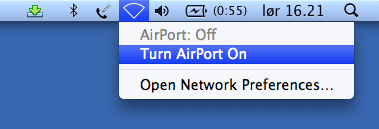
Find iconet for trådløst netværk i menulinien øverst til højre og vælg Slå AirPort Til/Turn AirPort On.
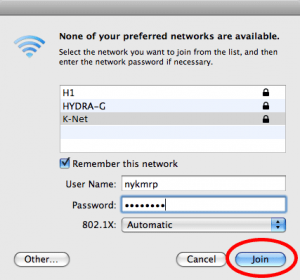
Efter 5-30 sekunder åbnes vinduet nedenfor.
Vælg “K-Net” fra listen, udfyld brugernavn/username og adgangskode/password. Klik herefter på Opret Forbindelse/Join.
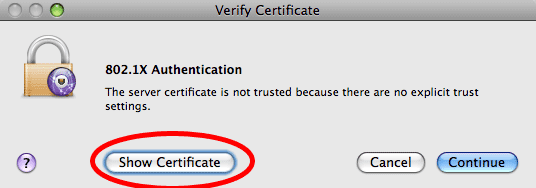
Et nyt vindue åbnes. Her vælges Vis certifikat/Show Certificate.
Sæt kryds i “Godkend altid secure.nybro.dk”/”Always trust secure.nybro.dk.
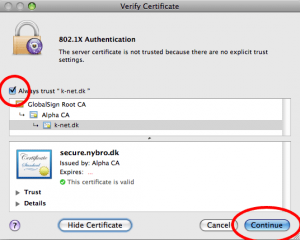
Vælg Forsæt/Continue.
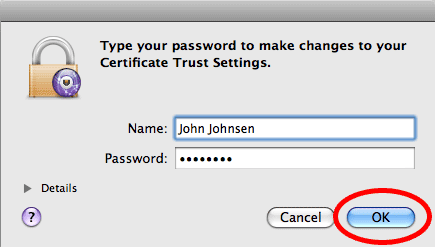
Derefter bedes om brugernavn og password til din egen computer.
Udfyld og klik OK.
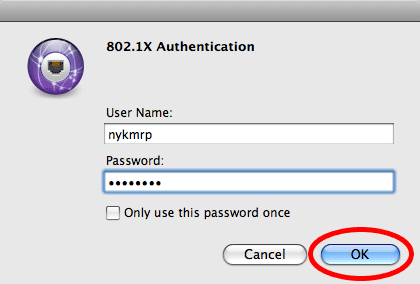
Herefter kan det sket at computeren spørger om Authentication igen.
Udfyld som nedenfor og klik OK.
Nu skulle opsætningen være gennemført. Skulle der dog mod forventning ikke være forbindelse, find da igen iconet for trådløst netværk i menulinien øverst til højre og vælg Åbn netværk…/Open Network Preferences.
Et nyt vindue åbnes.
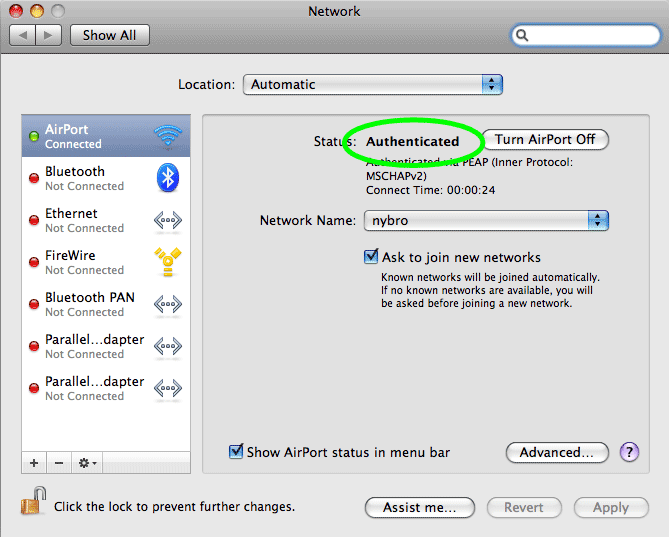
Kontroller at der står Godkendt/Authenticated, som vist på billedet nedenfor.
 The following guide is made with OS X 10.5 (Leopard).
Find the icon for wireless network in the menubar at the top right and select Turn AirPort On.
After 5-30 seconds a new window is opened.
Select “K-Net” from the list, enter your nybro username and password and click Join.
A new window is opend. Select Show Certificate.
Enable Always trust “secure.nybro.dk” and select Continue.
The you will be asked for the username and password for your own computer.
Fill it in and click OK.
The computer may ask for Authentication again.
Fill in you nybro username and password and click OK.
Now the setup should be completed. If there is no connection then find the icon for the wireless network again in the top right area and click Open Network Preferences.
A new window is opened.
Check that it says Authenticated as shown in the next image.